

A practical guide with real product examples of what’s replacing them.
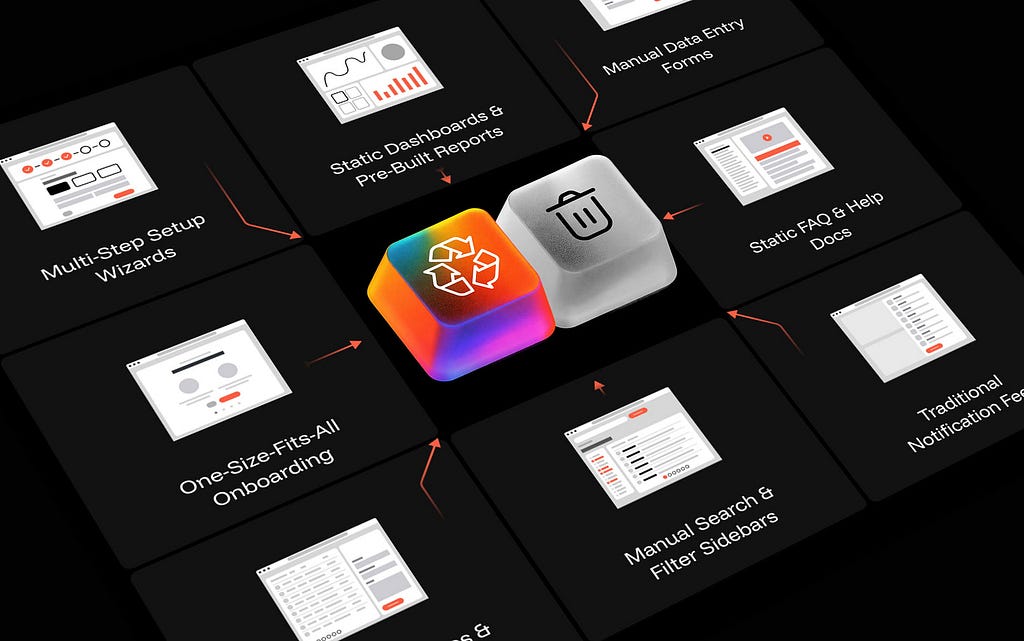
One of the bigger challenges for product and design teams right now is a type of UX debt nobody is tracking — patterns that still function but no longer justify their existence.
We’ve spent years perfecting dashboards, data entry forms, search flows, filter sidebars, setup wizards, notification feeds, FAQ pages, onboarding tours. All built on the same assumption: the human is the one doing the work.
Every one of those screens exists because a designer answered the same question: “What does the user need to do here?”
And right now, AI is replacing the reason each one exists.
Not because the patterns are broken — but because they all share the same assumption: the human is the one doing the work.
So which of these patterns do you retire? Which do you redesign? Which get a completely new job description?
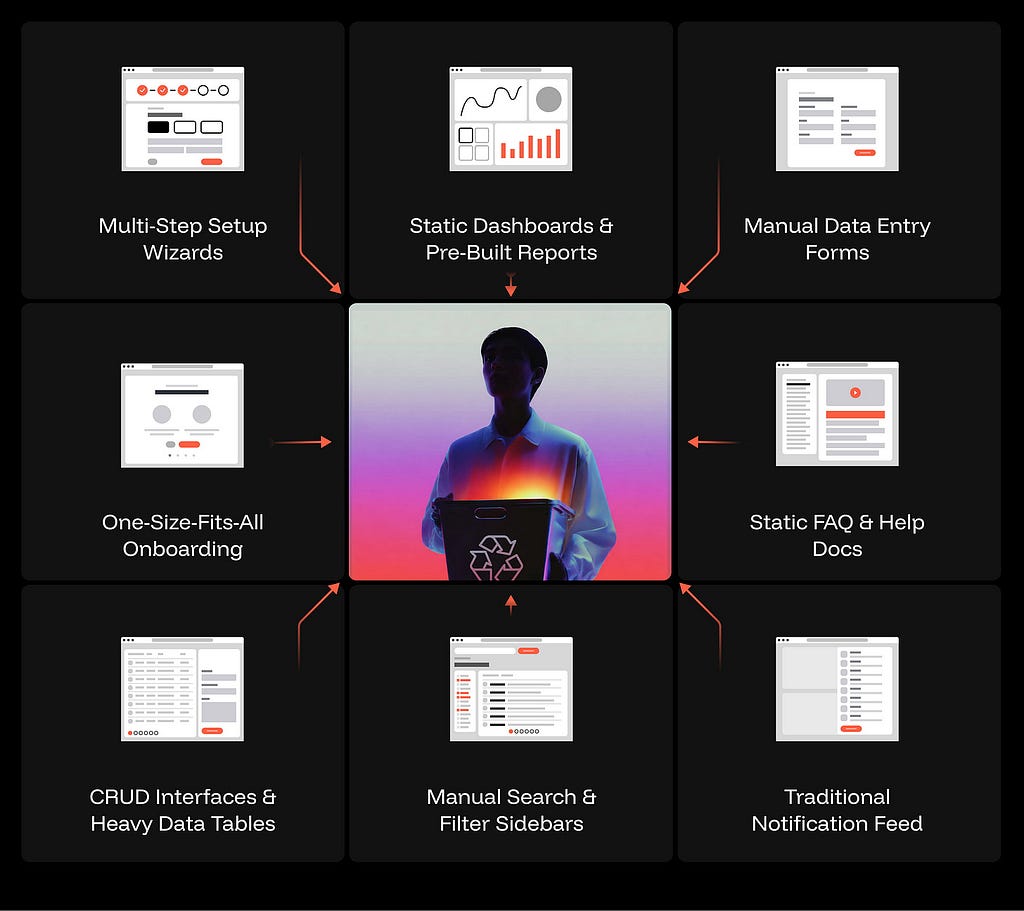
- Setup wizards → from interrogation to inference
- Filter sidebars → from manual specification to natural language
- Search results → from ranked links to synthesized answers
- Data entry forms → from transcription to confirmation
- Dashboards → from metric grids to anomaly surfaces
- CRUD tables → from row-by-row editing to bulk intent + diff review
- FAQ pages → from article browsing to contextual AI resolution
- Onboarding tours → from scheduled walkthroughs to inline explanation
- Notification feeds → from chronological streams to prioritized briefings
- “Create New” buttons → from blank canvas to generated first draft
Eight forces are pressuring legacy UI
Automation of Execution — AI can perform multi-step workflows end to end within defined constraints. Every screen that guides users through a sequence the system could run on its own is under pressure.
Ambient Context Understanding — Systems can now read your files, tools, history, and behavior without being asked. Every screen that exists to collect context the system should already have is under pressure.
Intent Resolution from Natural Language — Systems can interpret unstructured human input and map it to precise actions. Every screen that forces users to decompose their goal into the system’s vocabulary — filters, dropdowns, Boolean queries — is under pressure.
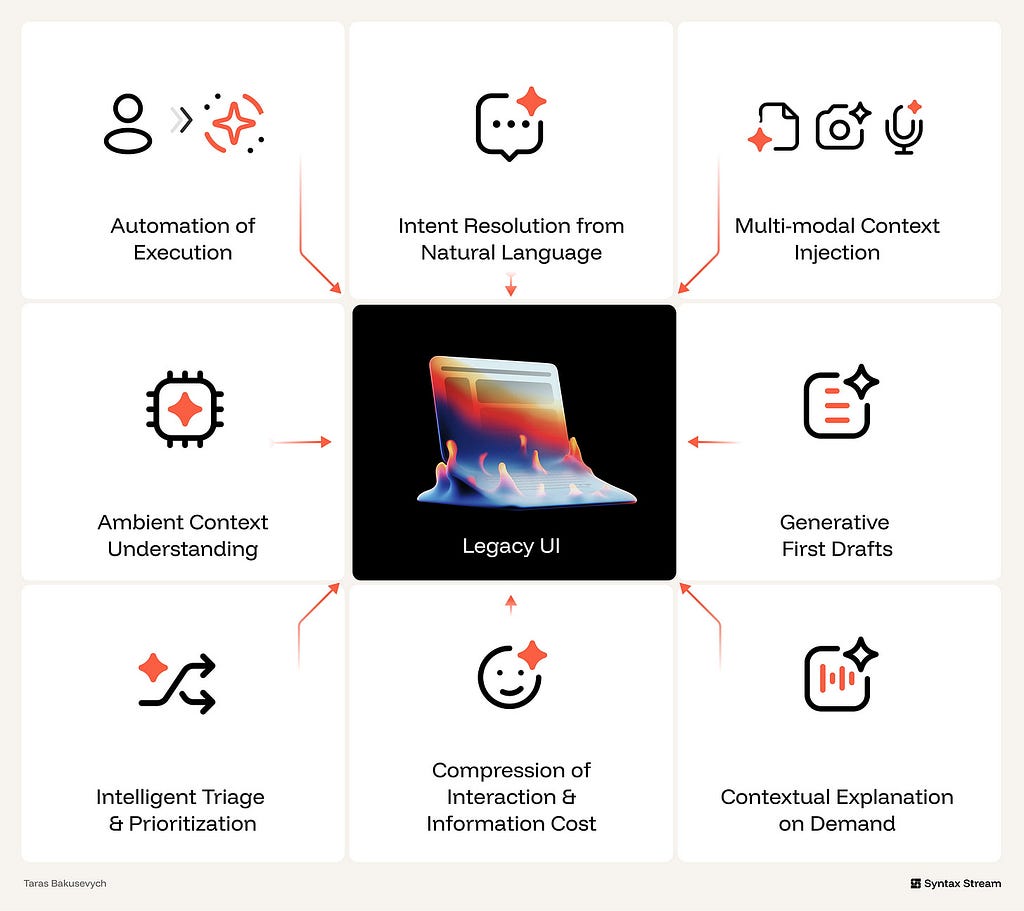
Multi-Modal Context Injection — Machines can now process images, voice, documents, and screen content as input alongside text. Every screen that limits input to typed text and structured fields is under pressure.
Generative First Drafts — AI can produce a coherent first version of nearly any artifact from a brief description. Every screen that starts users at zero is under pressure.
Contextual Explanation on Demand — System can detect what you’re struggling with and explain it at the moment of need. Every screen that front-loads generic education at a scheduled time is under pressure.
Compression of Interaction & Information Cost — Agents can collapse multi-step workflows into single actions and dense information into concise summaries. Every screen that breaks a simple intent into multiple steps is under pressure.
Intelligent Triage & Prioritization — Agents can evaluate urgency, relevance, and context to separate what matters from what doesn’t. Every screen that shows everything and expects the user to filter is under pressure.
🗑️ Multi-Step Setup Wizards → Intent Inference + Confirmation
Why it’s breaking. Setup wizards were built to guide users through complex configuration by breaking it into linear steps. They assume the user must understand the product’s vocabulary and consciously execute the process in order.
This assumption no longer holds. When AI can infer context from a single action — a connected repository, a first document, a calendar invite — the sequential interrogation becomes pure friction. The user’s first natural-language action reveals more about their intent than ten screens of dropdowns and toggle states ever could.
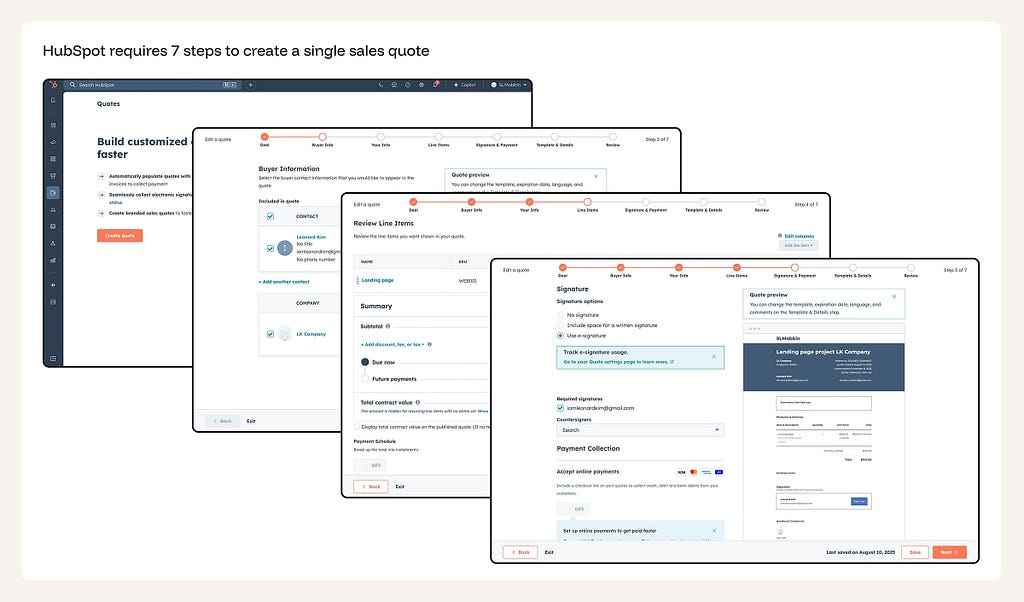
Creating a single sales quote in HubSpot requires navigating seven sequential screens. The rep manually selects the contact, adds company details, configures line items, chooses signature options, sets payment terms, picks a template, and previews the result — before a single quote reaches the buyer. Each step assumes the system doesn’t know information it already has in the CRM.
What replaces it. AI infers configuration from the user’s first meaningful action and assembles the setup automatically. The user reviews and corrects what the system got wrong — instead of answering questions about what it could have figured out.
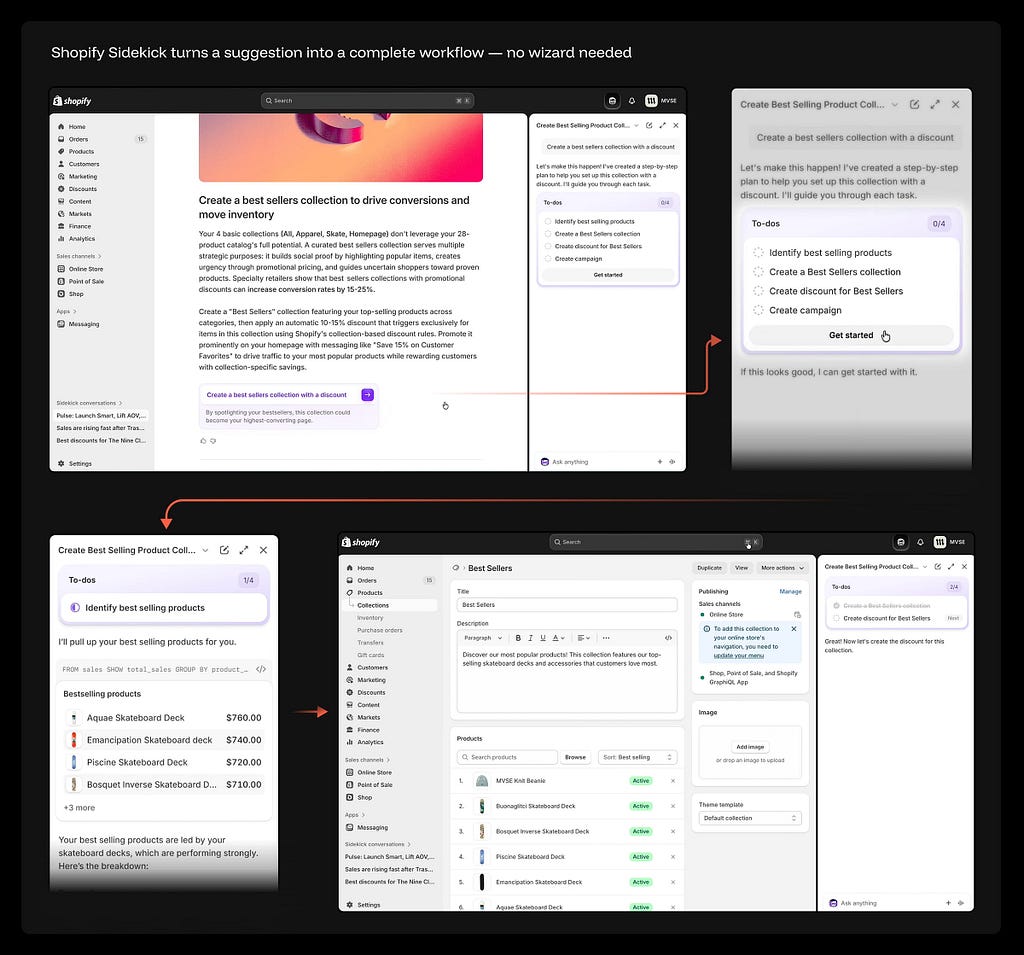
Shopify Sidekick analyzes store data, identifies that the merchant’s best sellers aren’t showcased, and proactively suggests creating a “Best Sellers” collection with a discount. One click on “Get started” — and Sidekick executes the entire sequence: queries sales data, identifies top products by revenue, creates the collection, populates it, configures the discount, and sets up the campaign. The merchant reviews results at each step, not form fields.
♻️ Manual Search + Filter Sidebars → Semantic Intent Resolution
Why it’s breaking. The traditional search paradigm forces a double translation: the user must first convert their intent into keywords, then re-specify that intent through checkbox panels, range sliders, and dropdown menus. This double translation is the opposite of how humans naturally articulate needs.
A single natural-language phrase — “affordable 2-bedroom near good schools in Brooklyn, not ground floor” — resolves what previously required a keyword query plus six filter interactions. The filter sidebar was a significant UX achievement when search was keyword-based. Semantic and vector search makes it a fallback, not a primary path.
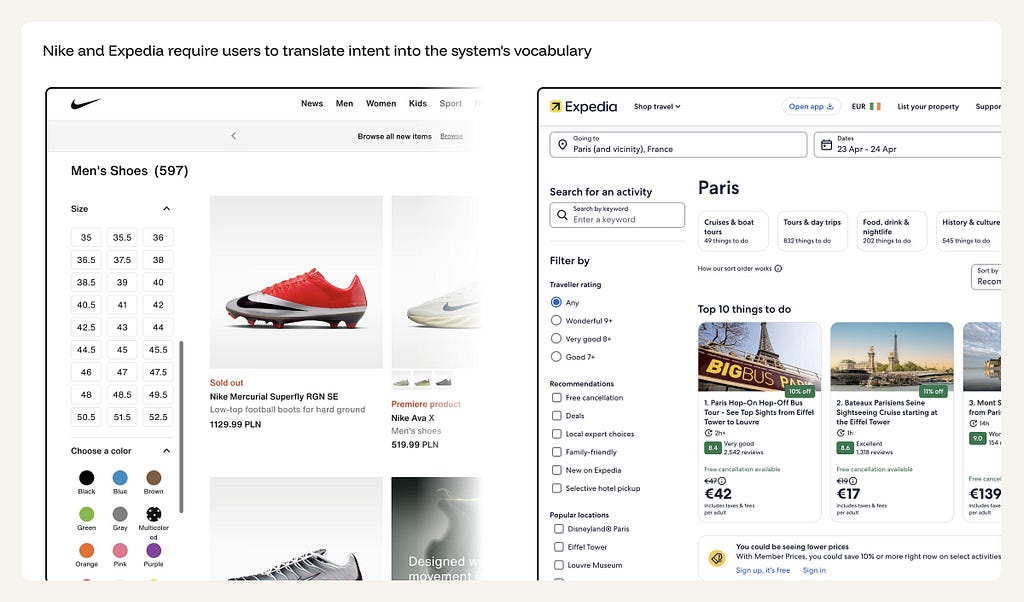
597 men’s shoes — now narrow them down manually. Nike presents a grid of 54 size buttons, 10 color swatches, and additional filter panels for price, width, and sport type. Expedia takes the same approach for Paris activities: keyword search box, traveller rating radio buttons, recommendation checkboxes (Free cancellation, Deals, Family-friendly), and location checkboxes (Disneyland, Eiffel Tower, Louvre). In both cases, the user knows exactly what they want — “black football boots, size 42” or “a family-friendly boat tour near the Eiffel Tower” — but the interface forces them to express it one filter at a time.
What replaces it. A natural-language input surface as the primary search entry point. Users state intent directly; the system resolves all constraints in one pass. Visual filters survive as a secondary correction mechanism — subordinate to intent, not competing with it. Multi-turn refinement replaces re-configuration: “Make it cheaper and closer to the beach.”
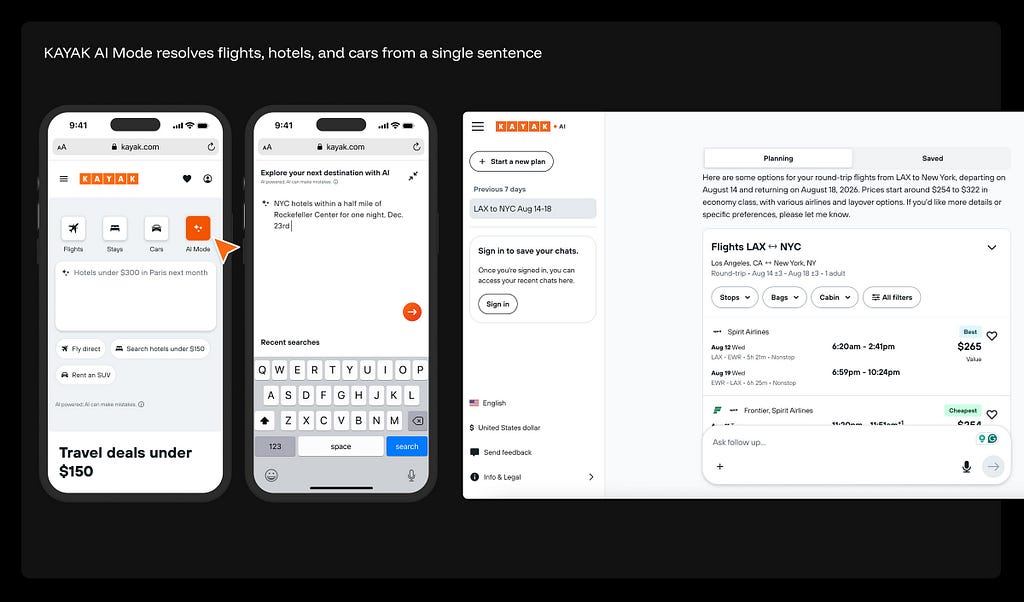
“NYC hotels within a half mile of Rockefeller Center for one night, Dec 23rd” — typed in plain language, no form fields. KAYAK’s AI Mode sits alongside the traditional Flights/Stays/Cars tabs, but replaces all of them with a single conversational input. The system interprets intent, pulls real-time pricing from hundreds of providers, and returns actionable results with an “Ask follow up…” bar for iterative refinement. One sentence does the work of three separate search forms.
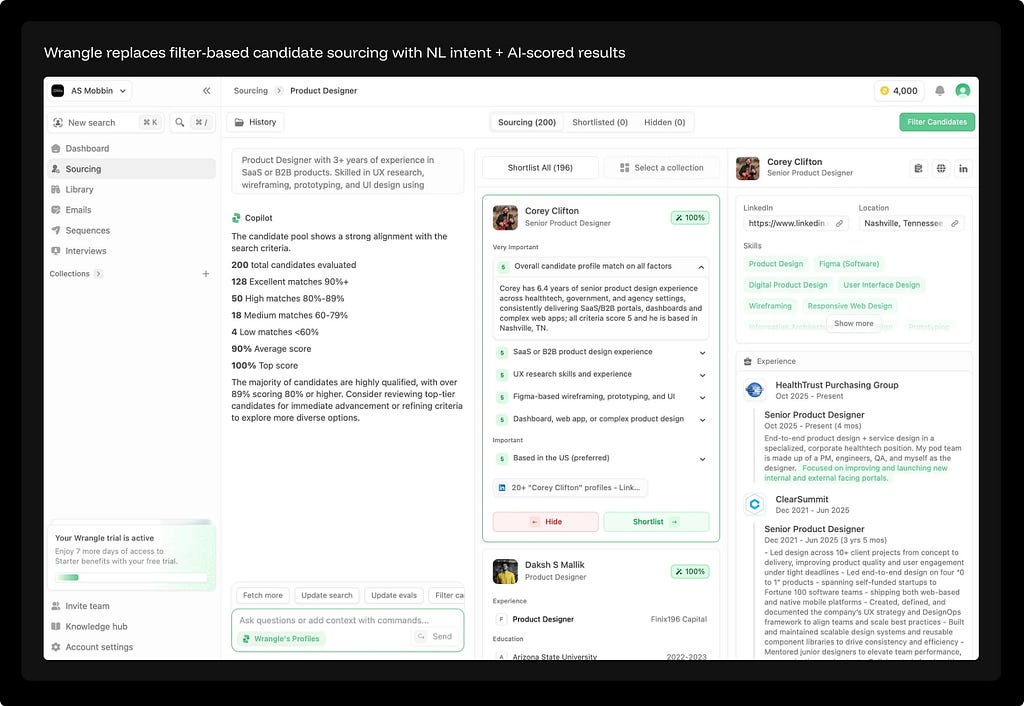
Instead of configuring 15 filter fields, the recruiter types: “Product Designer with 3+ years of experience in SaaS or B2B products. Skilled in UX research, wireframing, prototyping, and UI design.” The Copilot evaluates 200 candidates against the criteria and returns scored results — 128 excellent matches (90%+), 50 high matches (80–89%), 18 medium, 4 low. Each candidate shows a per-criteria score breakdown (SaaS experience: 5, UX research skills: 5, Figma-based wireframing: 5) with an explanation of why they matched. Two actions per candidate: Hide or Shortlist. The filter sidebar is replaced by a single intent description and a confidence-scored, explainable result set.
A necessary caveat: Filters are not useless — they are being repositioned. In many contexts, filters serve a discovery function that natural language can’t replace: a user browsing Nike doesn’t always know what they want. They want to see what’s available in their size, explore color options, compare price ranges. Filters make the option space visible and browsable. That’s a different job than specifying known intent.
The shift isn’t from filters to no filters. It’s from filters as the primary discovery mechanism to filters as a secondary refinement layer.
🗑️ Manual Data Entry Forms → AI Extraction + Confidence Signaling
Why it’s breaking. Asking users to manually type information that already exists in structured or semi-structured form elsewhere — emails, documents, receipts, calendars, scanned images — is UX debt that document AI now eliminates at the extraction layer. The form optimizes input friction (field order, tab flow, validation) but never questions why the user is typing at all.
The form field survives, but its function changes: from primary data entry to confirmation of what AI extracted. Design shifts from input optimization to confidence signaling — communicating when the AI is certain vs. uncertain about what it pulled.
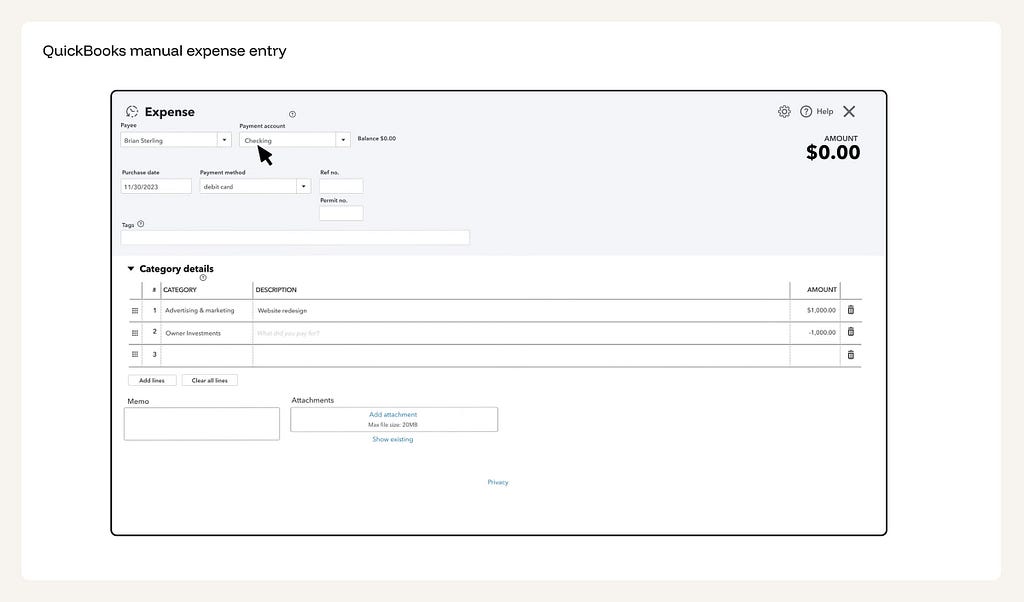
QuickBooks manual expense entry — every field filled by hand. Payee, payment account, purchase date, payment method, reference number, tags, category, description, amount — each field typed or selected manually by the user. The receipt is attached as a file, but the system doesn’t read it. The data on the receipt and the data in the form are the same information entered twice.
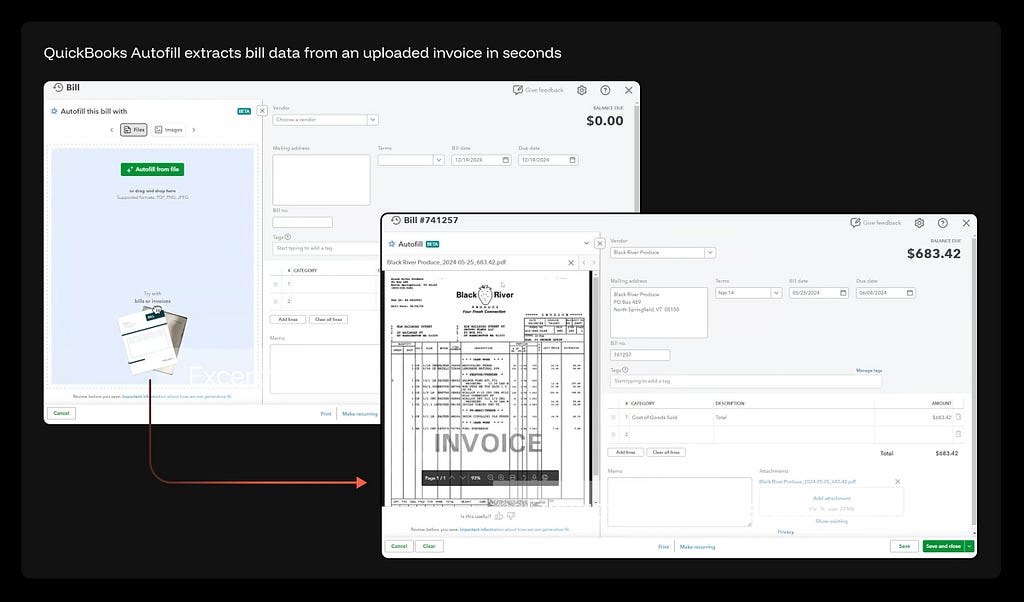
What replaces it. AI extracts data from source documents, emails, or images and pre-populates every field it can. The form becomes a diff view: “Here’s what I found — confirm or correct.” Fields populated with high confidence show a distinct visual state. Fields below a confidence threshold are flagged for human review. Users review and correct; they don’t transcribe.
QuickBooks Autofill extracts bill data from an uploaded invoice in seconds. Drop a PDF or photo into the Autofill panel, and AI reads the document — extracting vendor, address, bill number, dates, payment terms, line items, and total. The same form exists, but the user’s role flips from typing to reviewing. Fields the system is confident about are pre-filled. The user corrects what’s wrong, not enters what’s missing.
🗑️ Static Dashboards & Pre-Built Reports → Exception Surfaces + Conversational Investigation
Why it’s breaking. The scheduled report and the static dashboard both answer questions their builders asked months ago during implementation. A grid of KPIs displaying “everything we thought was important” optimizes for comprehensiveness, not relevance. Users scan 20 metrics manually to find the one that changed — or worse, they don’t notice the change at all.
AI analytics makes every question askable in real time. The dashboard’s role evolves from “display everything” to “surface anomalies worth investigating.” Metric density gives way to explanation, insight summaries, and recommended actions.
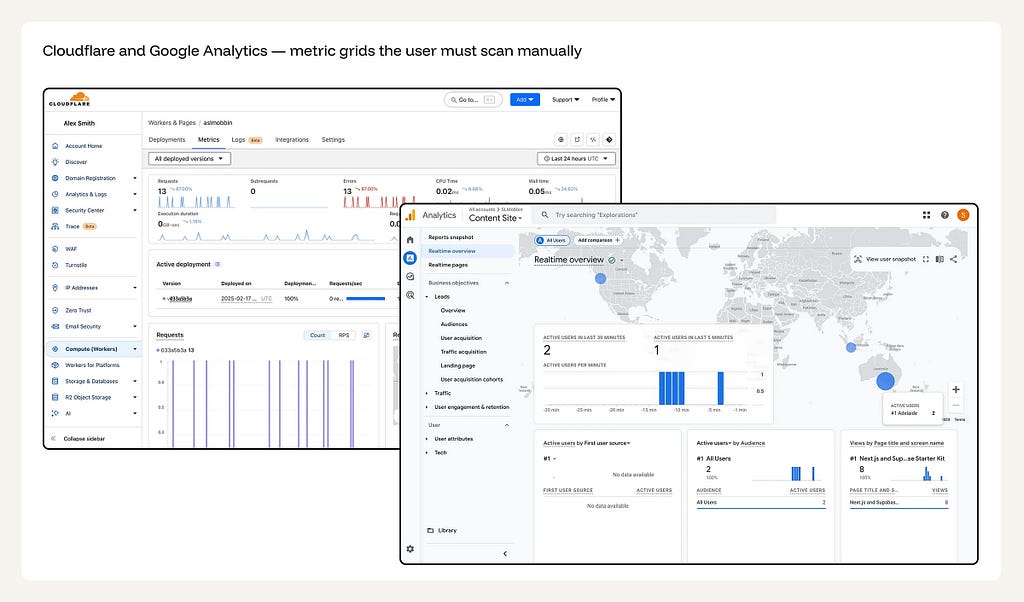
Cloudflare shows requests, errors, CPU time, and wall time as static number tiles. Google Analytics presents a sidebar tree of report categories — Realtime, Leads, Audiences, Traffic, User engagement — that the user navigates to find relevant data. Both dashboards display everything at equal visual weight. Nothing tells the user what changed, what matters, or what to do next. The user is the anomaly detector.
What replaces it. An anomaly-first surface that monitors continuously and highlights only what changed and why. The dashboard answers a single question: “Why am I seeing this?” Natural language query surfaces handle deep investigation on demand. The primary configuration surface becomes threshold and alert design — not chart layout.
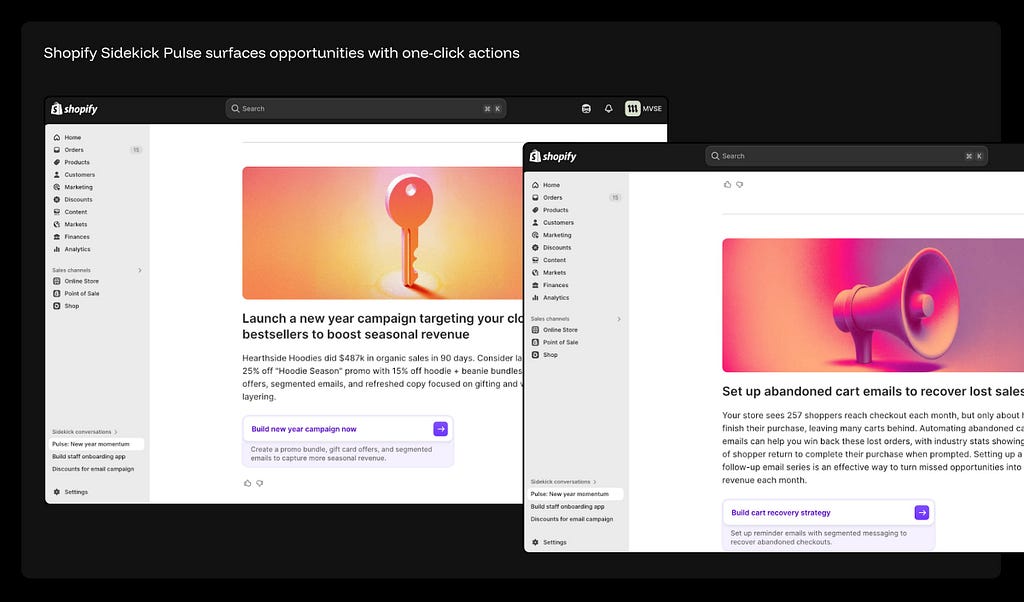
Shopify Sidekick Pulse surfaces opportunities with one-click actions. Instead of a metric grid, Sidekick analyzes store data in the background and proactively surfaces specific findings: “Hearthside Hoodies did $487k in organic sales in 90 days — consider launching a Hoodie Season promo” and “257 shoppers reach checkout each month but don’t finish — set up abandoned cart emails.” Each insight comes with a concrete action button — “Build new year campaign now” or “Build cart recovery strategy.” The merchant responds to recommendations, not charts.
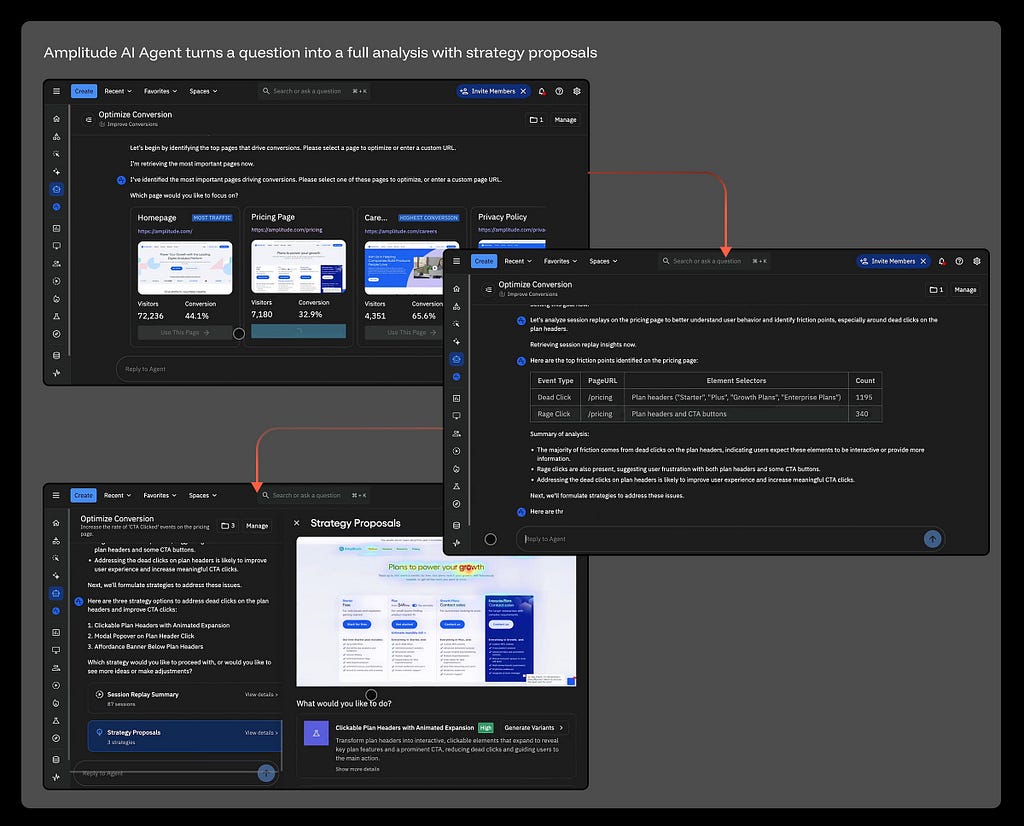
Amplitude AI Agent turns a question into a full analysis with strategy proposals. A PM asks “Optimize Conversion” and the agent identifies top pages by traffic and conversion, then asks which page to focus on. After selecting the pricing page, the agent pulls session replay data, identifies specific friction points — 1,195 dead clicks on plan headers, 340 rage clicks on CTA buttons — summarizes the root cause, and proposes three concrete strategies: Clickable Plan Headers, Modal Popover, and Affordance Banner. Each strategy includes a “Generate Variants” action. The investigation that would take a data analyst a full day happens in one conversation thread.
♻️ CRUD Data Tables → Bulk Intent + Diff Review
Why it’s breaking. CRUD tables were designed around a single assumption: one human, one record, one field at a time. That model works when you’re editing a single contact or updating one ticket. It breaks the moment your intent spans more than a handful of records.
The gap is between how users think and how the interface operates. A merchandiser thinks “increase all Q3 prices by 12% except the starter tier.” An ops lead thinks “reassign all of Anna’s open tickets to James and escalate the overdue ones.” A PM thinks “mark every feature request from enterprise accounts as high priority.” Each of these is a single decision. But the CRUD table can only execute it as dozens — sometimes hundreds — of individual edits.
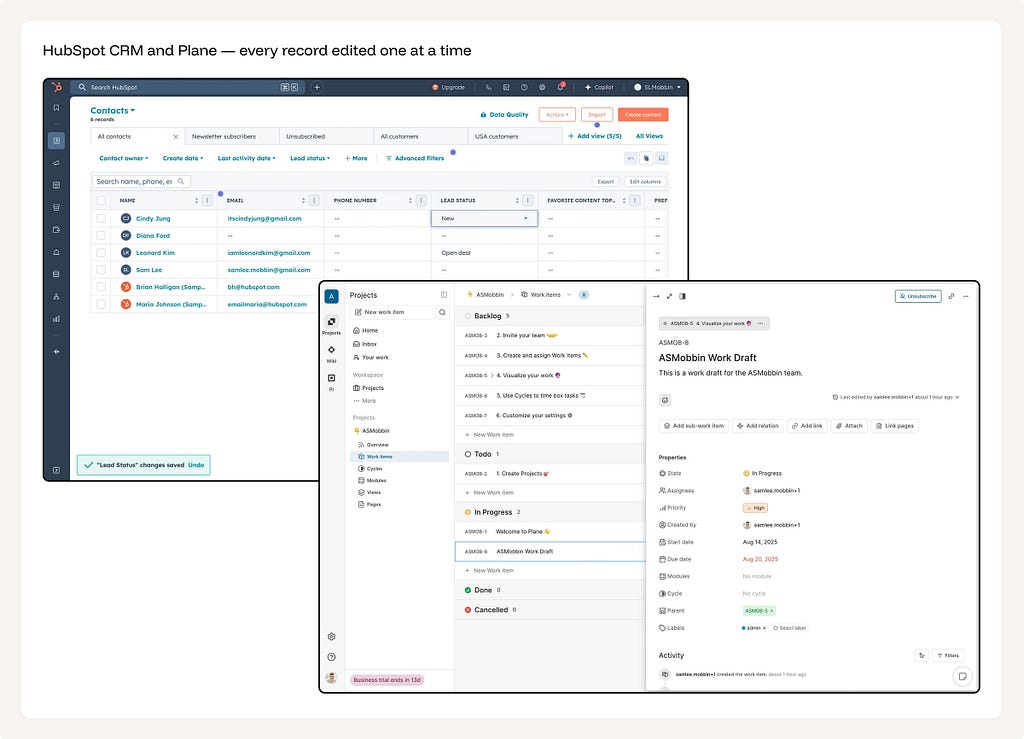
HubSpot’s Contacts table: 6 records, each edited by clicking into a cell, selecting a dropdown value, saving. Changing the Lead Status for all six contacts means six individual interactions — and a green toast notification confirms each one separately. Plane’s project tracker follows the same pattern: each work item opens as a full-page detail panel with 12 property fields — State, Assignee, Priority, Start date, Due date, Labels — all changed one at a time. Need to reassign 20 items after a team restructure? Open each one, change the assignee, close, repeat. The interface treats every record as a separate editing session.
What replaces it. Natural language intent applied at scale, with a diff review surface showing exactly what will change before anything is committed. The user describes the transformation once — “Increase all Q3 prices by 12% except the starter tier” or “Reassign all open tickets from Anna to James and change priority to high” — and the system generates the full change set. The user reviews a summary: 184 records, 2 fields changed, here’s the before and after. Accept all, accept by group, reject individual items, or modify the instruction and regenerate.
The user’s role shifts from row-level operator to intent author and change reviewer. The table becomes a read surface for verification, not the primary editing interface. The interaction model inverts: instead of doing the work and hoping it’s right, the user describes the work and verifies it’s right before it happens.
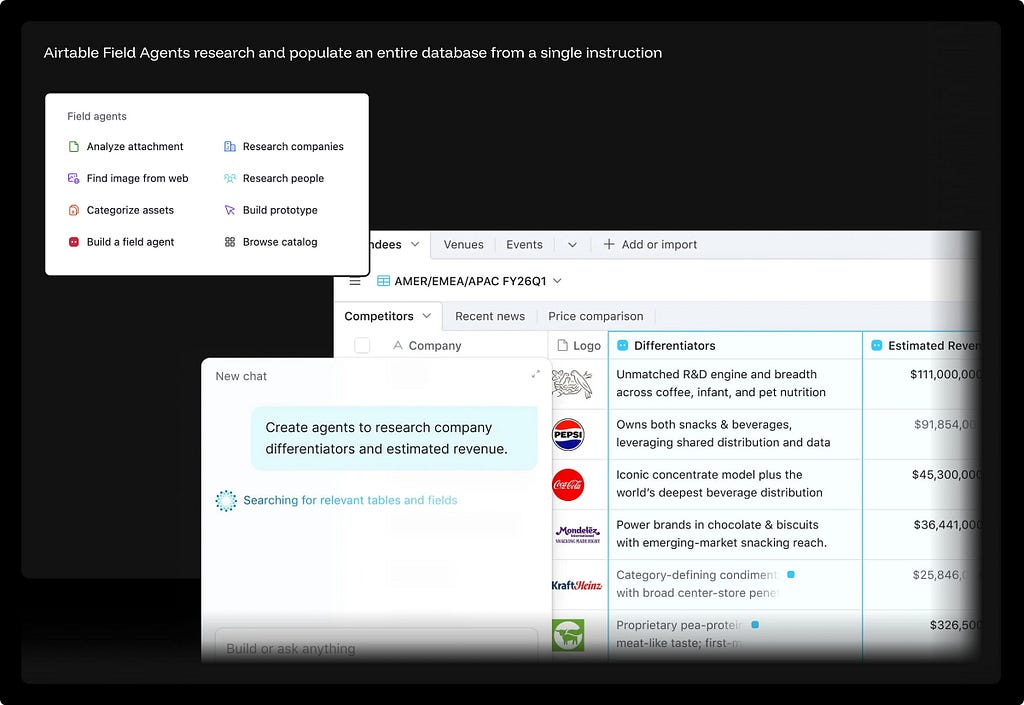
Type “Create agents to research company differentiators and estimated revenue” and Airtable’s AI scans the Competitors table, researches each company on the web, and fills two columns autonomously — Differentiators and Estimated Revenue — across every row. Nestlé, PepsiCo, Coca-Cola, Mondelēz, Kraft Heinz — each gets a tailored summary and revenue figure without a single manual cell edit. Field Agents go beyond autofill: they analyze attachments, find images from the web, categorize assets, and research people. The table describes what it needs; the agent does the work row by row.
🗑️ Static Onboarding, FAQ & Help Docs → Contextual AI Support
Why it’s breaking. Product tours, tooltip walkthroughs, and tutorial overlays assume every user needs the same introduction at the same time. The help center as a searchable library of static articles assumes users can decompose their specific problem into a documentation category, then read a generic article and self-apply it to their situation. Most users can’t — they describe symptoms, not system architectures.
The static FAQ answers the question the writer imagined. Contextual AI support answers the question the user actually has, given their specific account state, error context, and prior actions. The help center is becoming an AI training artifact — a knowledge base backend, not a user-facing destination.
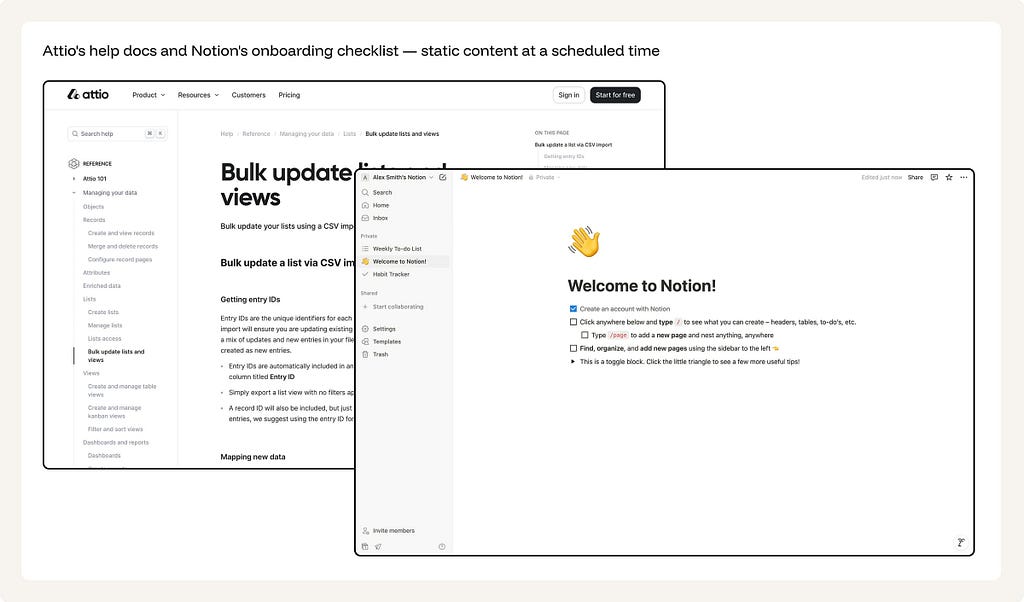
Attio’s support surface is a traditional hierarchical doc tree: Reference → Managing your data → Lists → Bulk update lists and views. The user navigates a sidebar of nested categories to find an article about CSV imports and Entry IDs. Notion’s first-run experience is a checklist page — “Click anywhere below and type /,” “Type /page to add a new page,” “Find, organize, and add new pages using the sidebar.” Both deliver generic instructions at a predetermined moment. The checklist doesn’t know what the user is actually trying to build. The doc article doesn’t know what the user just tried and failed to do.
What replaces it. Conversational AI that contextualizes answers to the user’s specific state. The system knows what page they’re on, what error they hit, what plan they’re on, and what they tried before asking. The system observes behavior and explains what’s useful right now, not what might be useful eventually. Explanation adapts to the user’s proficiency level, getting more concise as expertise develops. Escalation to a human agent is a designed fallback when AI confidence drops below a threshold — not the default path. The FAQ exists to feed the AI, not to be browsed by users.
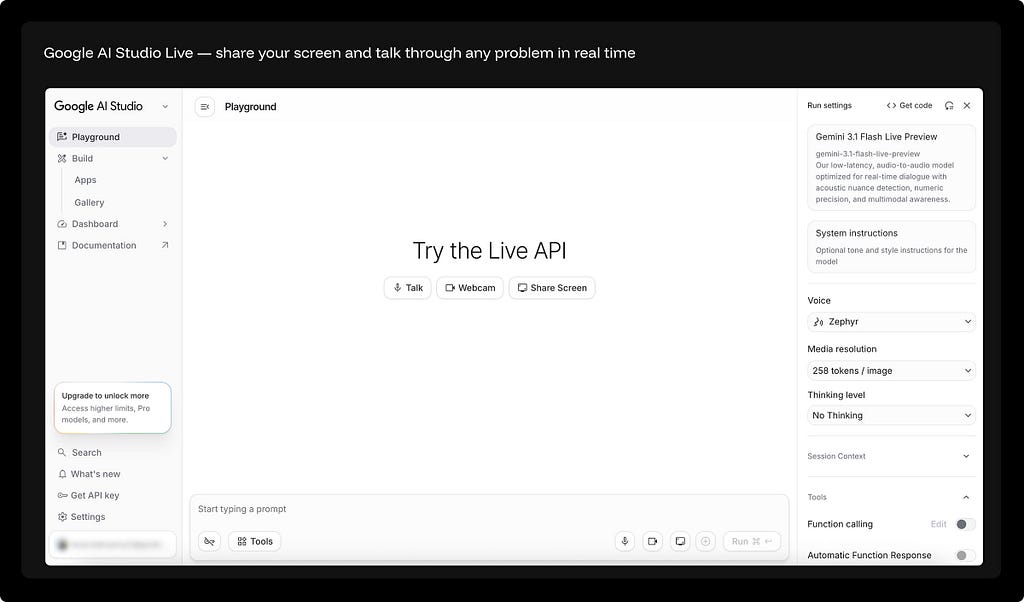
Three input modes: Talk, Webcam, or Share Screen. Click “Share Screen” and the AI sees exactly what you see — your IDE, your spreadsheet, your design tool. Describe the problem out loud and get spoken, contextual guidance without typing, searching, or navigating a help center. Screen-sharing AI assistance hasn’t been widely adopted in products yet — cost, latency, and privacy concerns keep it at the platform level rather than embedded inside individual apps. But the pattern points where contextual support is heading: an AI that sees your context in real time instead of waiting for you to describe it.
🗑️ Traditional Notification Feed →
AI-Curated Decision Surfaces
Why it’s breaking. The notification as a tap-on-the-shoulder from a product demanding attention was designed for an era of scarcity — when products had a few important events per day. Today, a single user may receive hundreds of notifications across dozens of products. Volume-based notification thinking (more pings = more engagement) has inverted: the ideal notification is the one that replaces ten lesser ones.
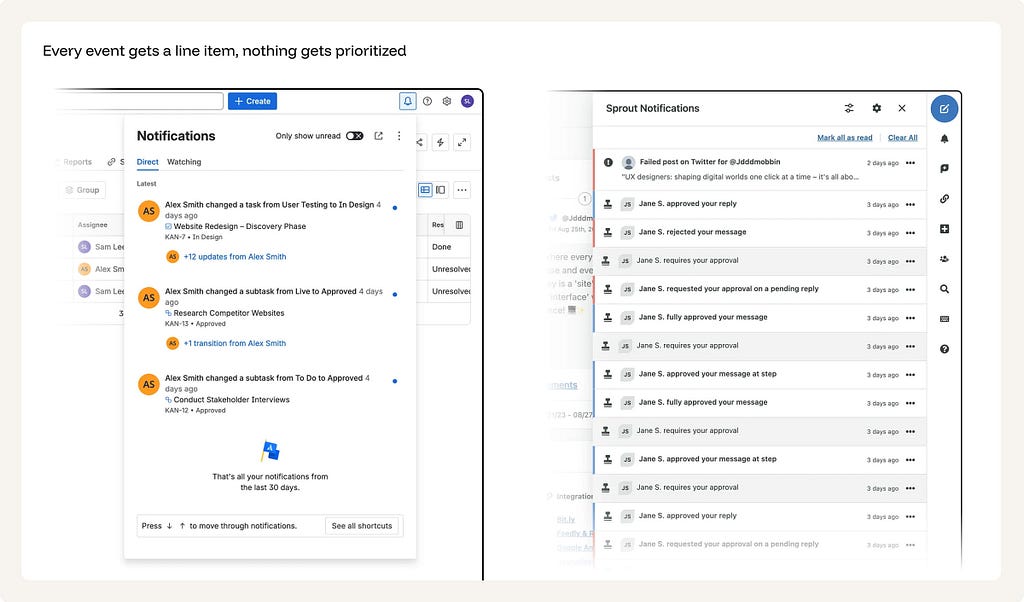
The core failure: every event is treated as equally important. A teammate liking your comment gets the same visual weight as a production system going down. The user becomes the filter — scanning, dismissing, missing what matters.
Jira lists each task update as a separate line item. Sprout Social shows 14 near-identical notifications from the same person — approvals, rejections, and replies all with equal visual weight. A failed post and a routine approval look the same. The user scrolls through everything to find what matters.
What replaces it. AI acts as a triage layer: deciding what’s worth interrupting for based on context, urgency, relationship to the user’s active goals, and current state. Low-priority updates batch into structured digests. High-priority events escalate with enough context for the user to act immediately — not just “something happened,” but “here’s what happened, why it matters, and what you should do.” The notification becomes a decision surface, not an alert stream.
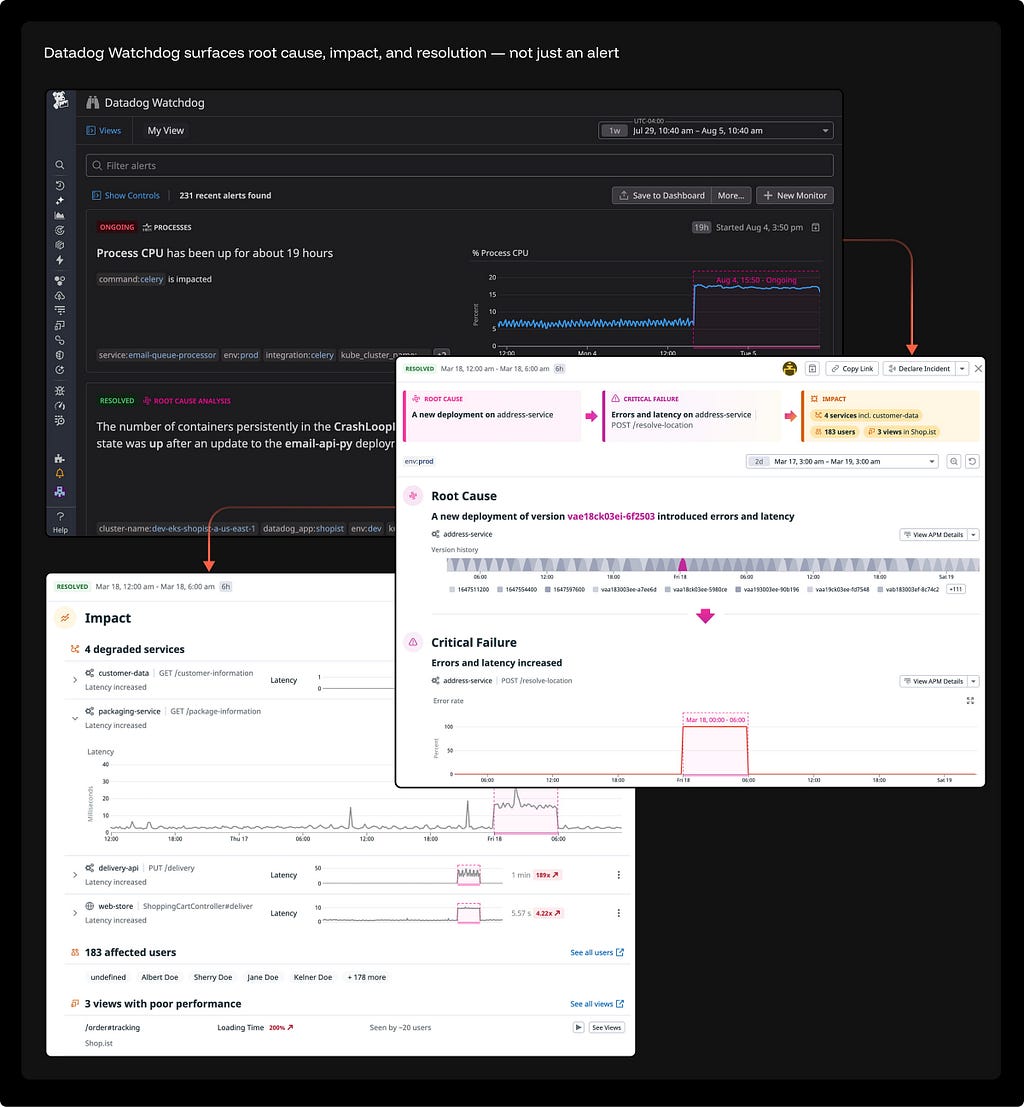
Watchdog structures one incident as a causal chain: Root Cause → Critical Failure → Impact. A deployment broke an endpoint. Four services degraded. 183 users were affected. The engineer sees what happened, why, and how bad it is — without scanning a single alert list.
♻️ “Create New” Buttons → Generate / Suggest / Continue Flows
Why it’s breaking. The “New Document,” “New Slide,” “New Project” button drops users at zero. It assumes creation starts from nothing — a blank canvas, a blinking cursor, an empty spreadsheet. This default optimizes for expert users who know exactly what they want and penalizes the majority who experience blank-canvas paralysis.
What replaces it. “Generate / Suggest / Continue” flows that start from intent, not from zero. The user describes what they need — a topic, a goal, a reference, a constraint — and the system produces a first draft for the user to react to. Creation becomes curation: the first creative act is a reaction, not an origination. This applies to every creation surface: documents, presentations, images, emails, code, spreadsheets, and workflows.
The shift isn’t a switch. It’s a migration
None of these legacy patterns will disappear overnight. Zillow still has its filter sidebar. PowerPoint still has its blank slide. HubSpot still has its 7-step quote wizard. And they should — not every user has access to AI features, not every context justifies the trust threshold, and not every edge case is covered.
The shift isn’t a switch. It’s a migration. The legacy pattern moves from default to fallback. The AI pattern moves from experimental to primary. Your job as a designer is to decide where each screen in your product sits on that spectrum today — and where it should sit six months from now.
The interfaces that survive will be those that make human judgment more powerful — not those that require humans to simulate computers.
Shift from Execution Ul to Judgment Ul.
This distinction is the single most useful heuristic for deciding which screens to invest in, which to simplify, and which to retire.
Execution UI: Interfaces that help humans perform deterministic work — entering data, configuring rules, following process steps, executing repetitive operations.
🟠 Shrinking. As Al automates execution, these surfaces lose their reason to exist.
Judgment UI: Interfaces that help humans evaluate, guide, and correct work done by machines — reviewing outputs, verifying changes, understanding reasoning, intervening at exceptions.
🟢 Growing. As Al takes on more autonomous work, humans need better surfaces to supervise it.
This essay was originally published on my Substack Syntax Stream, where I write about principles of human–AI interaction.
10 UI patterns that won’t survive the AI shift was originally published in UX Collective on Medium, where people are continuing the conversation by highlighting and responding to this story.


